Why is Connect a separate app?
A quick, clear explanation.
Android places limits on how regular apps can access call audio, and Google Play has specific policies around the use of Accessibility for call recording. Because of this, the main CallRecap app cannot provide the complete two-sided recording setup by itself on Google Play.
CallRecap Connect completes that setup and works together with the main app on your phone, so CallRecap can support more regular phone calls and VoIP conversations across Android devices.
Clear permissions, clear purpose
CallRecap Connect only asks for the permissions needed to support call recording. You choose when to enable them, and they can be changed at any time from Android Settings.
Accessibility
Accessibility helps Connect recognise supported call screens and understand when a call starts or ends. When supported, it may also read call-related information currently visible on the active call screen so CallRecap can label the recording correctly.
Microphone
Used to capture call audio.
Phone status
Used to recognise when regular phone calls begin and end.
Battery optimization
Allowing background battery keeps recording working reliably during calls.
Focused only on call recording
CallRecap Connect does not access your stored contacts. It also does not use Accessibility to read:
A standard Android step
About the message Android shows when you enable Accessibility.
Android shows a standard system message whenever an app requests Accessibility access. This message describes the full range of functions that Accessibility can technically provide.
CallRecap Connect uses Accessibility only for the call-related functions explained on this page. You can review or change this setting at any time:
Settings → Accessibility → Installed apps → CallRecap Connect
Your data, protected
Encryption & infrastructure standards we follow.
Choose an official CallRecap source
Every official version of CallRecap Connect is published and maintained directly by the CallRecap team.
Free · No ads · Android
Set up in 2 minutes
Quick, one-time setup. After this, everything is automatic.
Download CallRecap Connect
Tap the download button below. Your browser will download a small file (under 10 MB). Open it to install.
Allow installation
Your phone may ask you to allow installing apps from your browser. This is a standard Android setting — tap Allow and proceed.
Grant permissions
When Connect opens, it will ask for microphone and phone permissions. These are needed to detect and record calls. Tap Allow for each one.
Enable the Accessibility Service
This is the key step. Connect needs this permission to detect when calls start in any app (WhatsApp, Telegram, etc.) and capture the audio. Follow the on-screen guide to enable it in your phone's settings.
You're done!
Go back to CallRecap. You'll see a green checkmark in Settings confirming Connect is active. From now on, every call is automatically recorded, transcribed, and analyzed.
Visual Installation Guide
Tap any section to expand. Tap screenshots to zoom in.
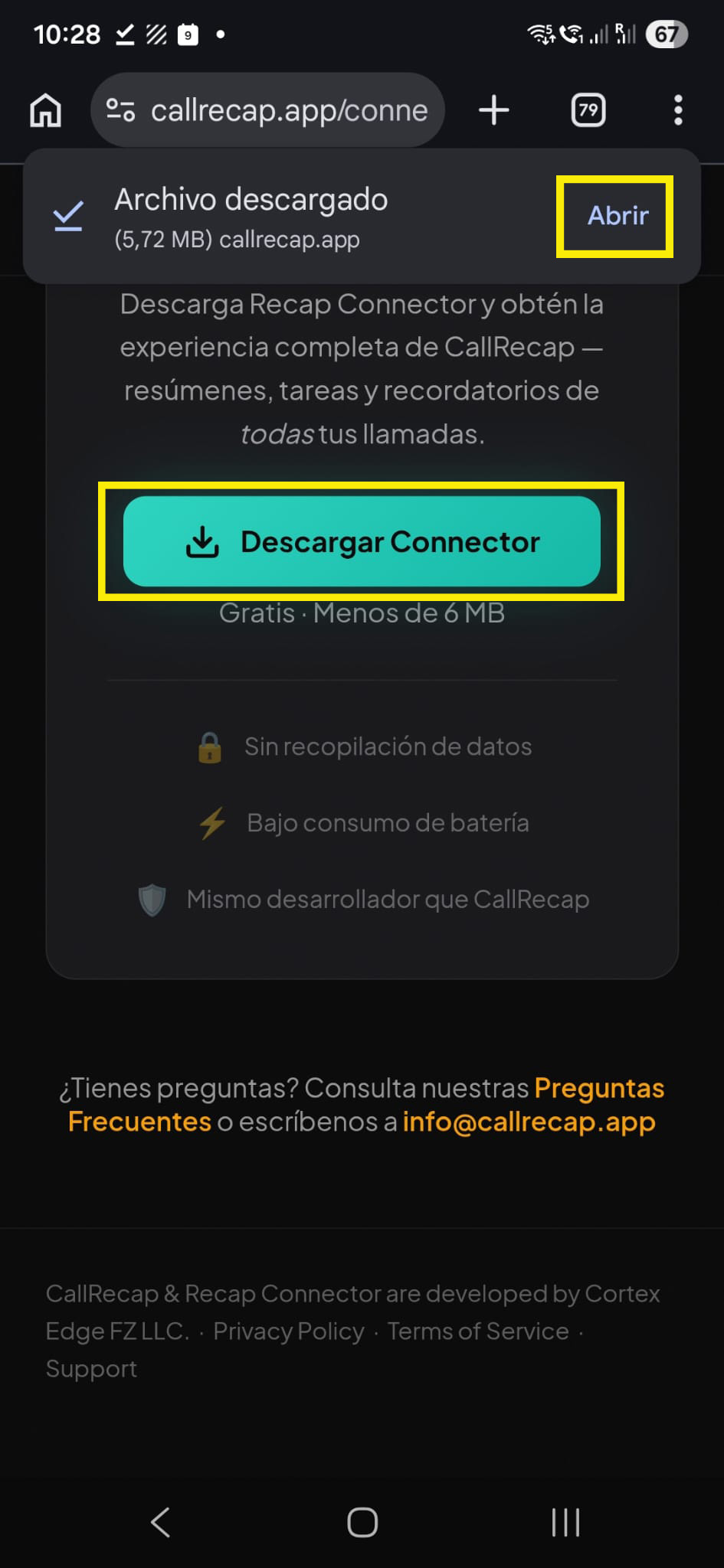
Go to callrecap.app/connector on your phone and tap Download Connect. When the download finishes, tap Open.
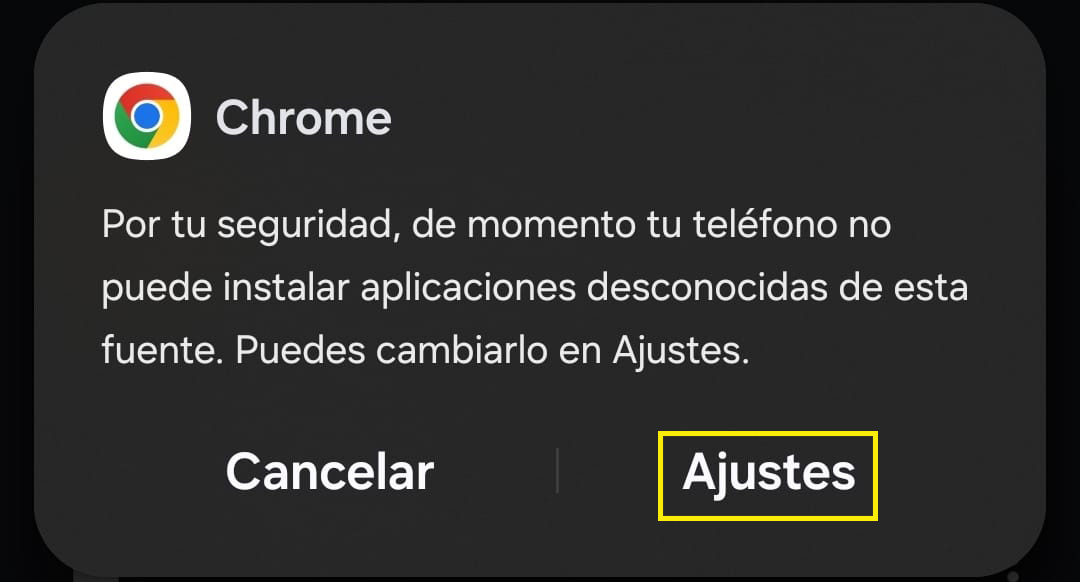
Your phone may say it can't install apps from this source. Tap Settings.
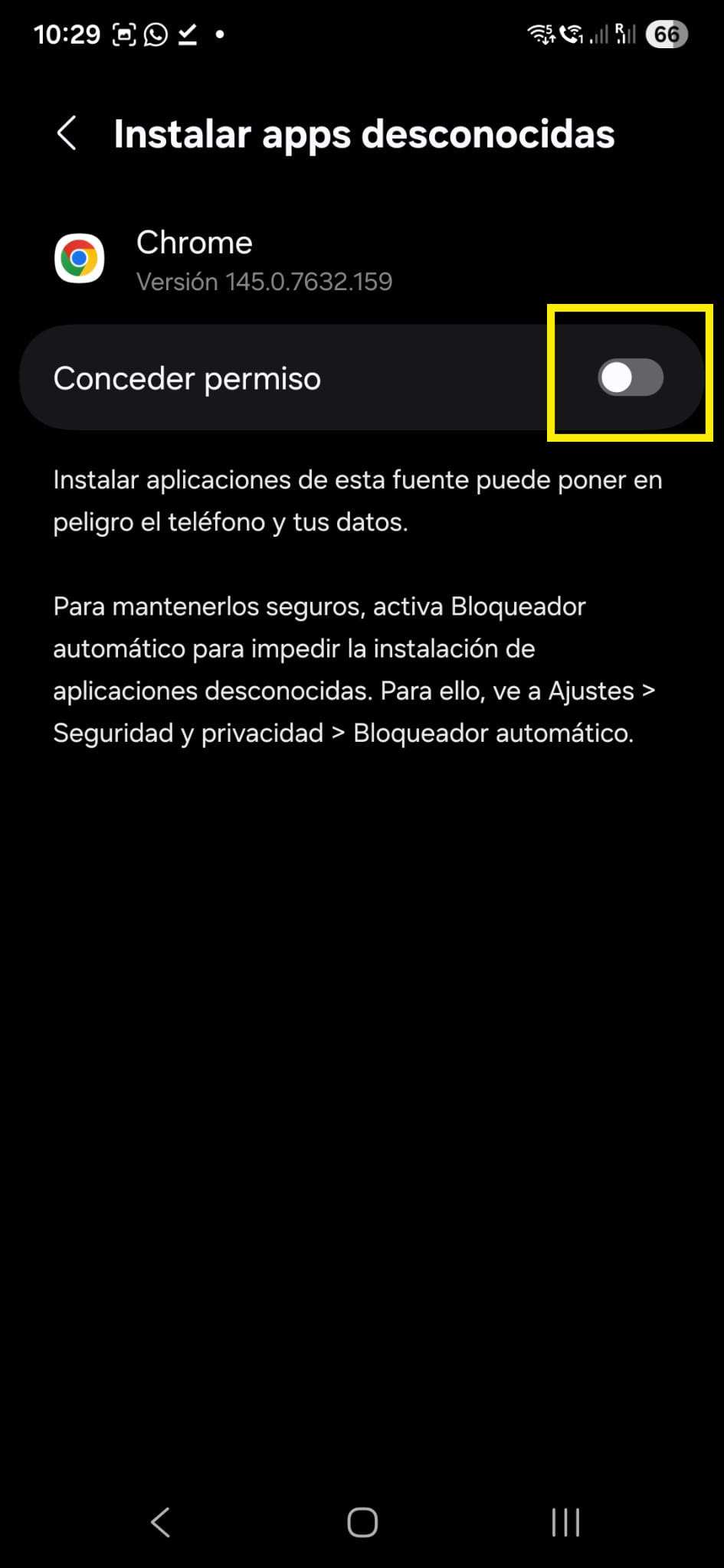
Turn on the Allow from this source toggle for your browser (e.g. Chrome).
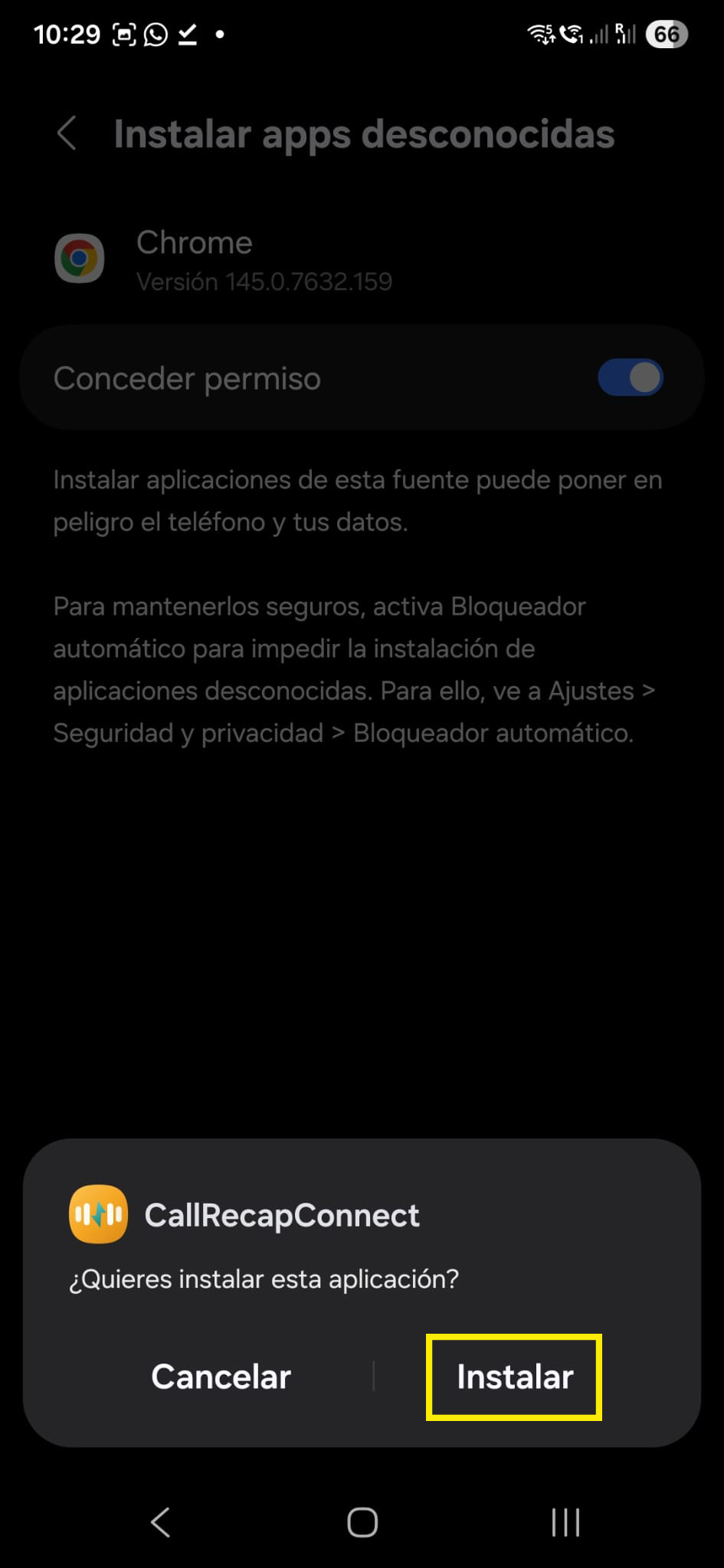
Now you'll see the install prompt. Tap Install.
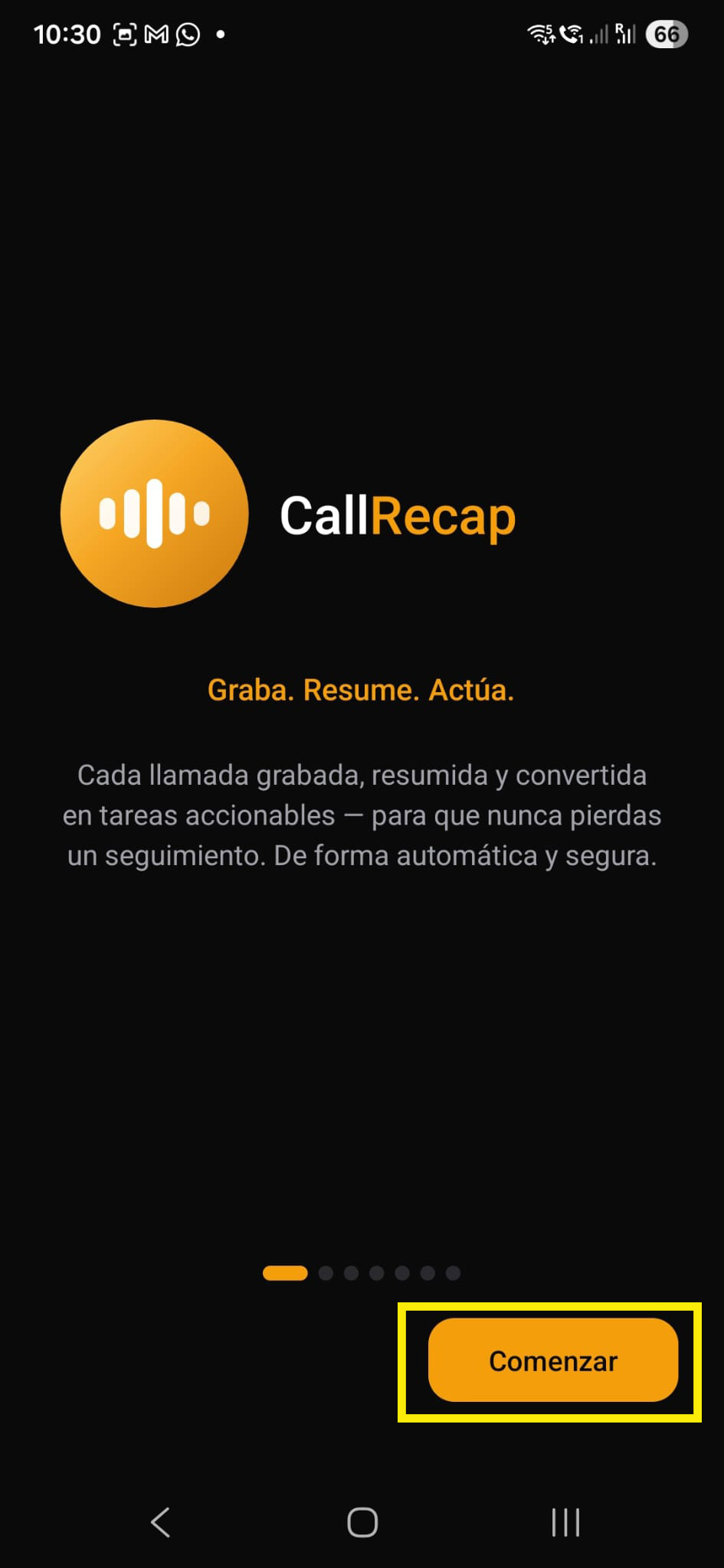
Connect opens with a welcome screen. Tap Get Started.
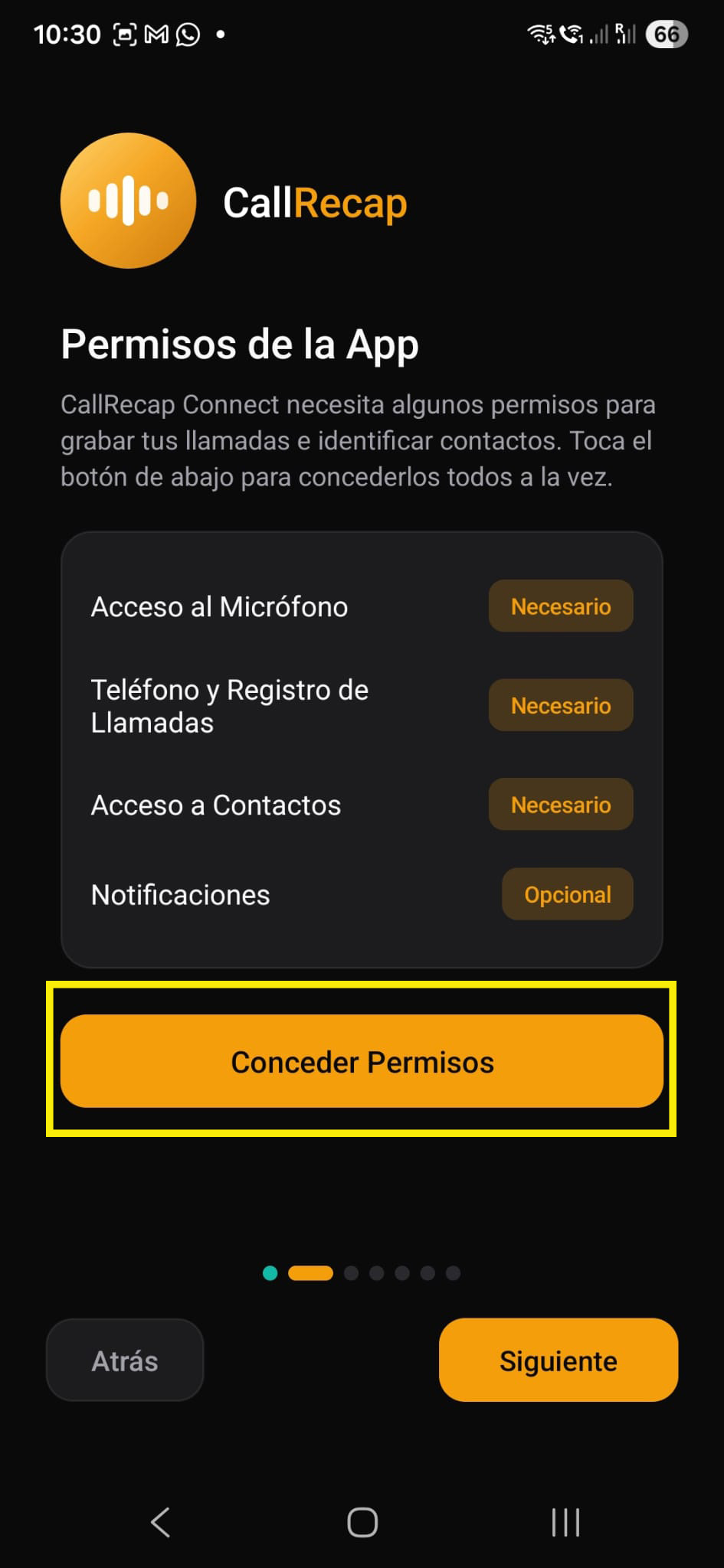
Tap Grant Permissions. The app needs Microphone, Phone, and Contacts to record and identify calls.
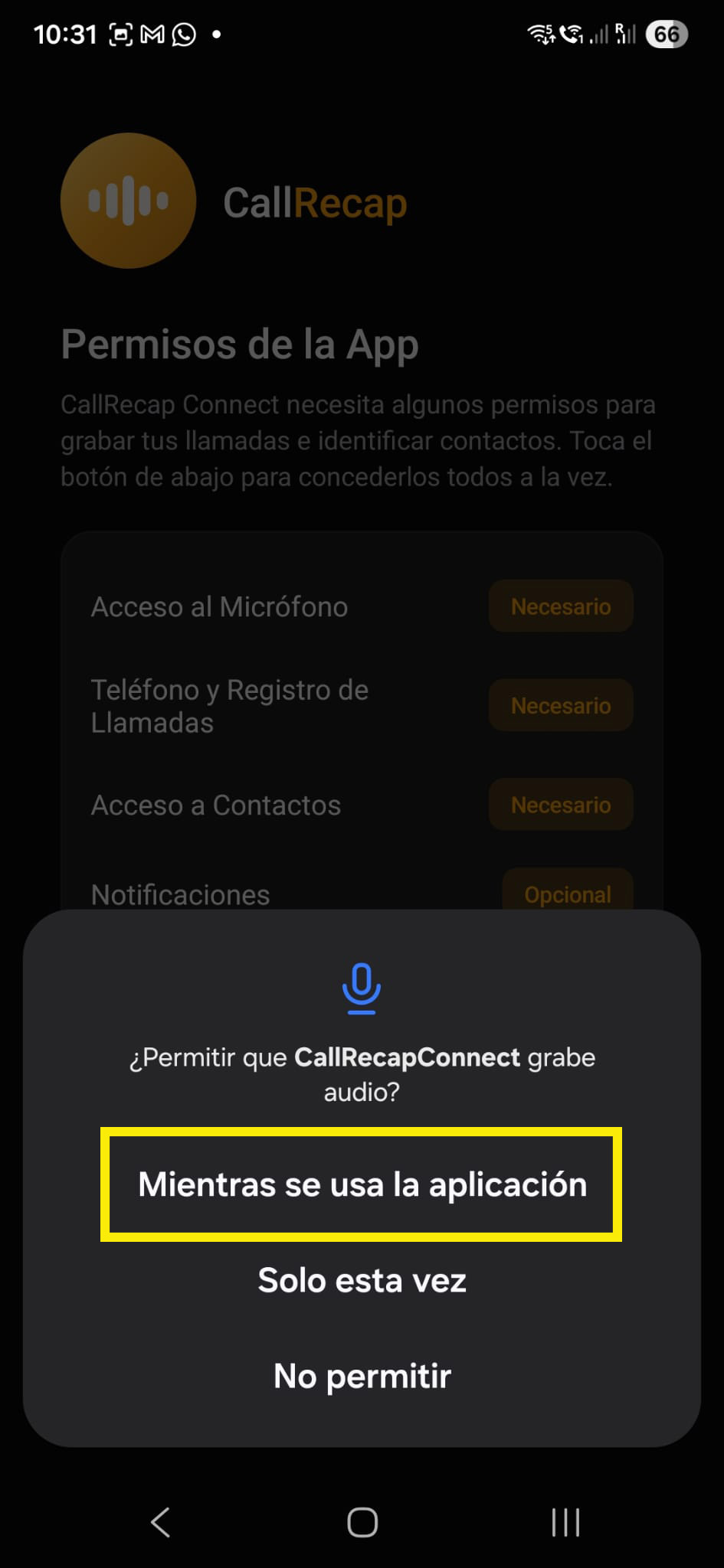
For each permission dialog, tap While using the app or Allow.
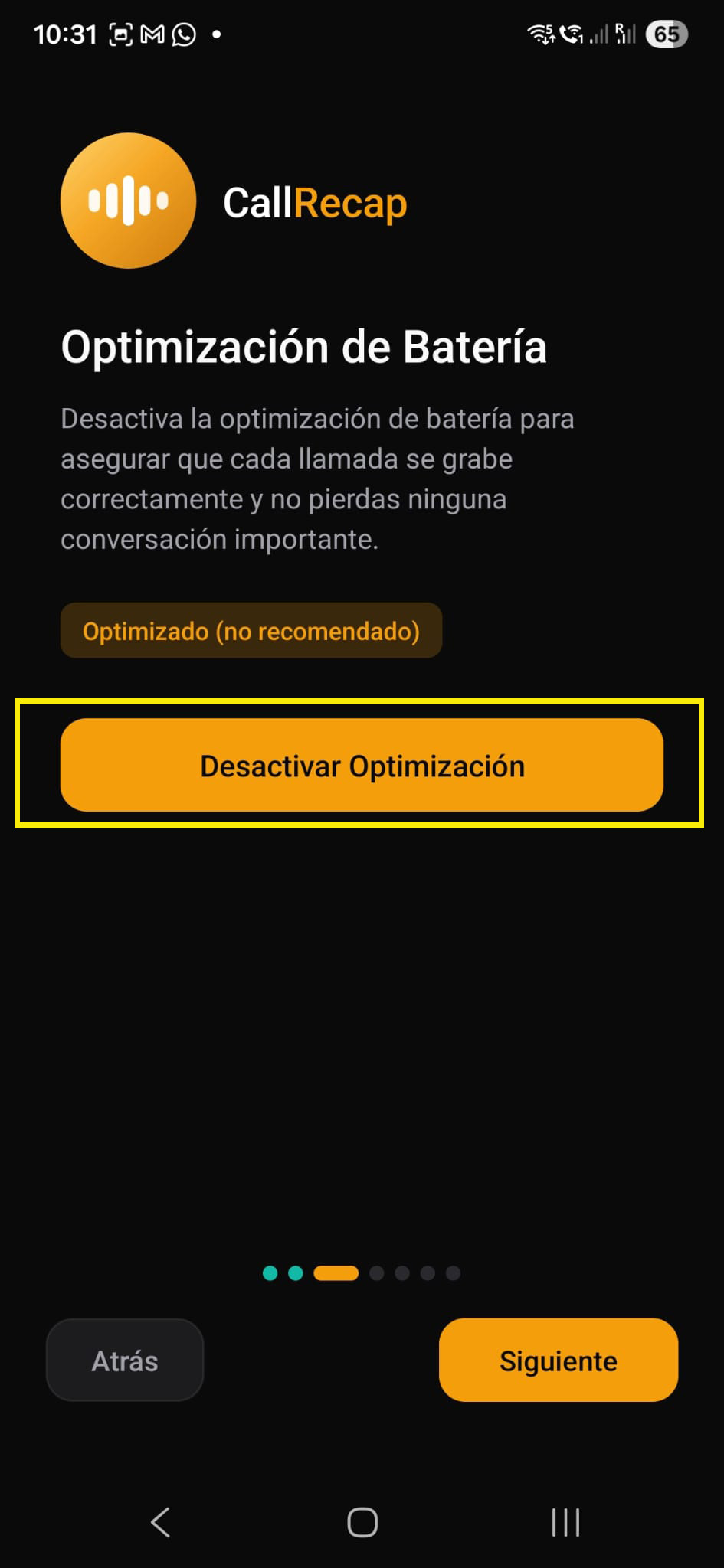
Tap Disable Optimization so Android doesn't kill Connect in the background.
In the system dialog, tap Allow.
This keeps Connect running reliably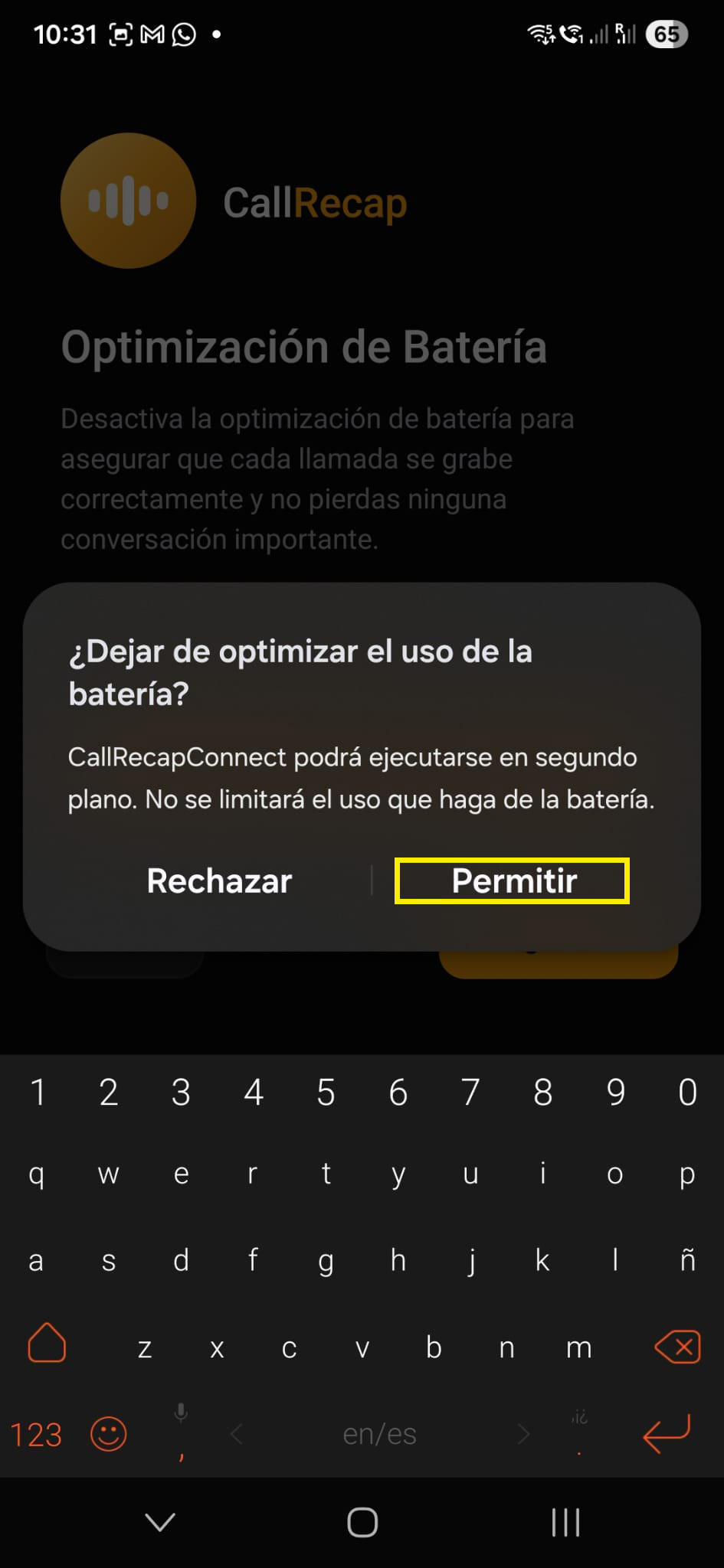
Connect shows the Accessibility step. Tap Open Accessibility Settings.
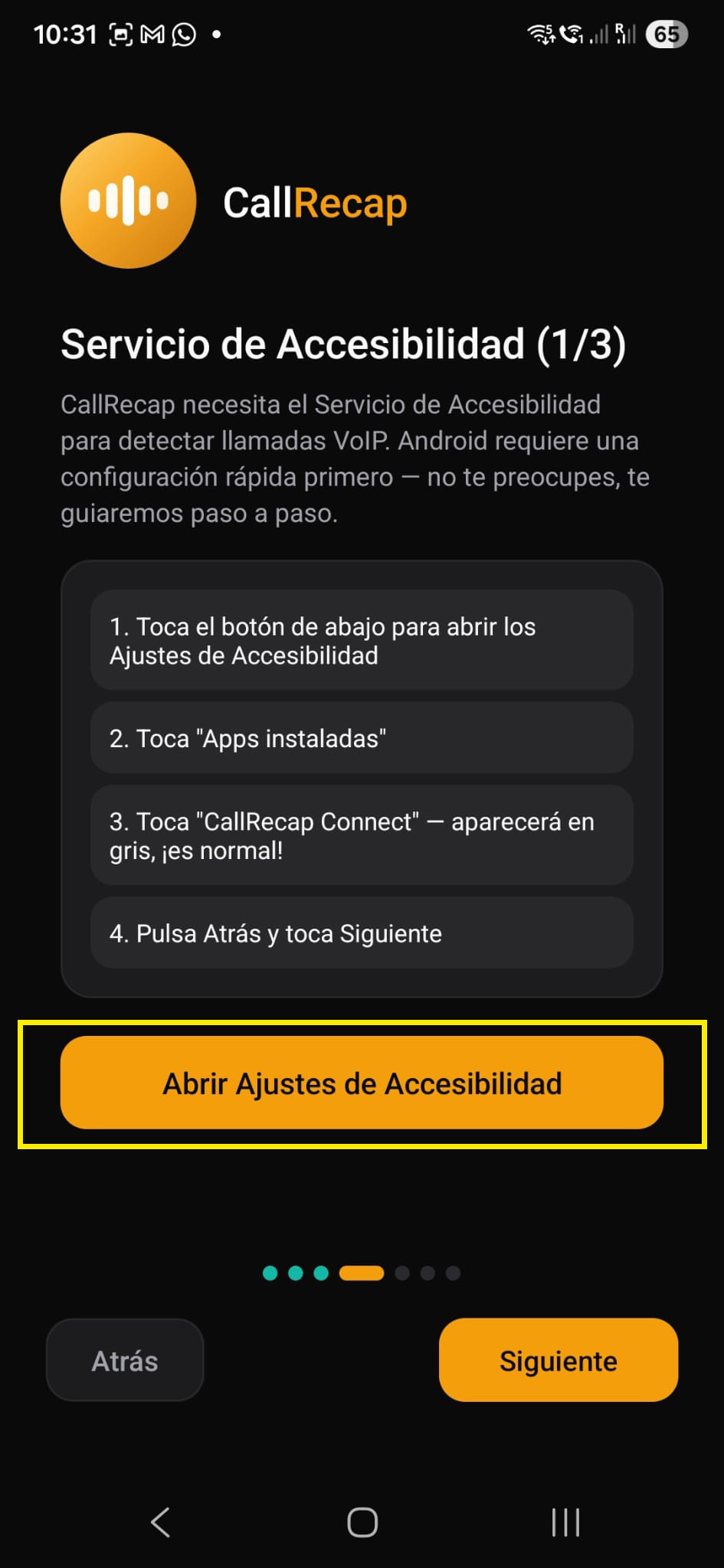
In Android settings, tap Installed apps.
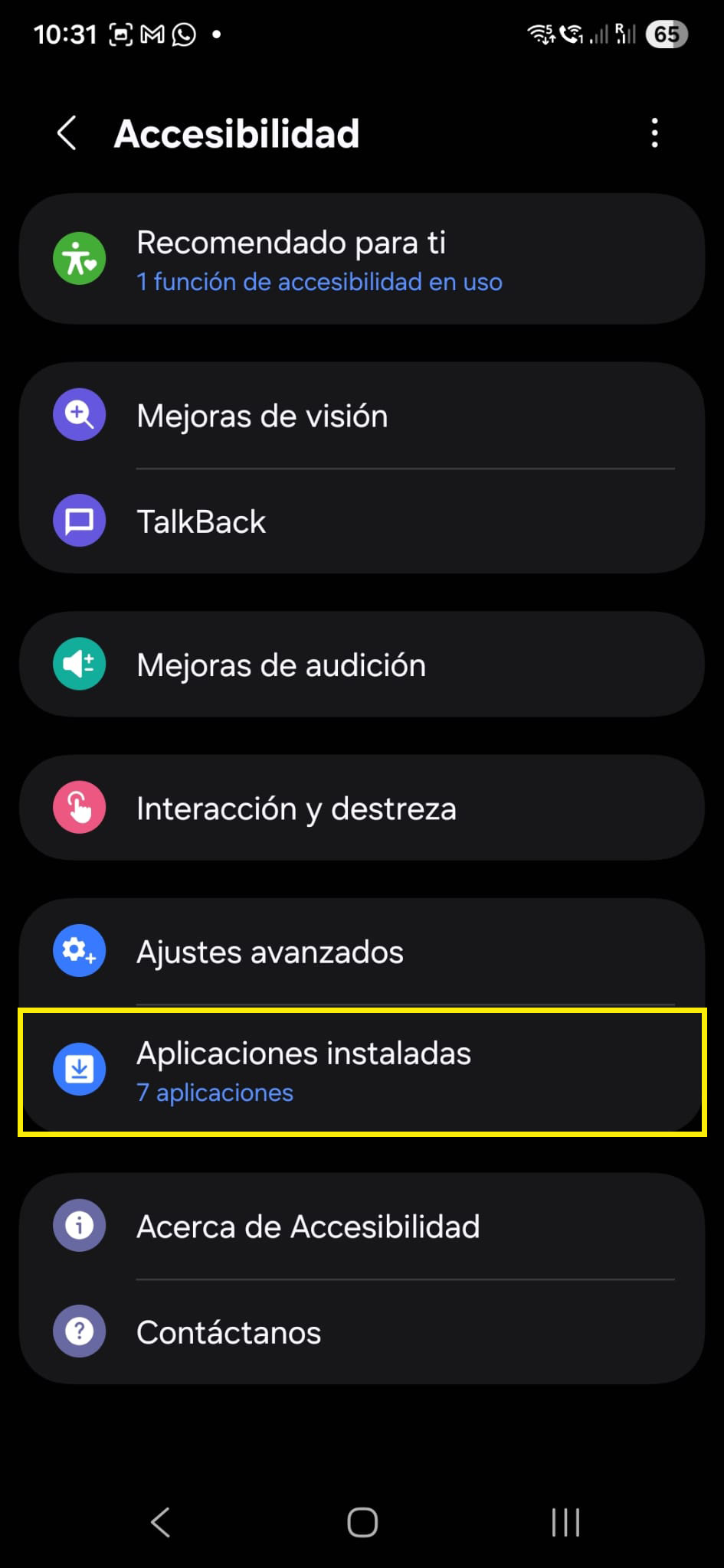
Tap CallRecapConnect — even though it's greyed out. This is a required action. Android shows "Controlled by restricted settings" on Android 13+, which is expected.
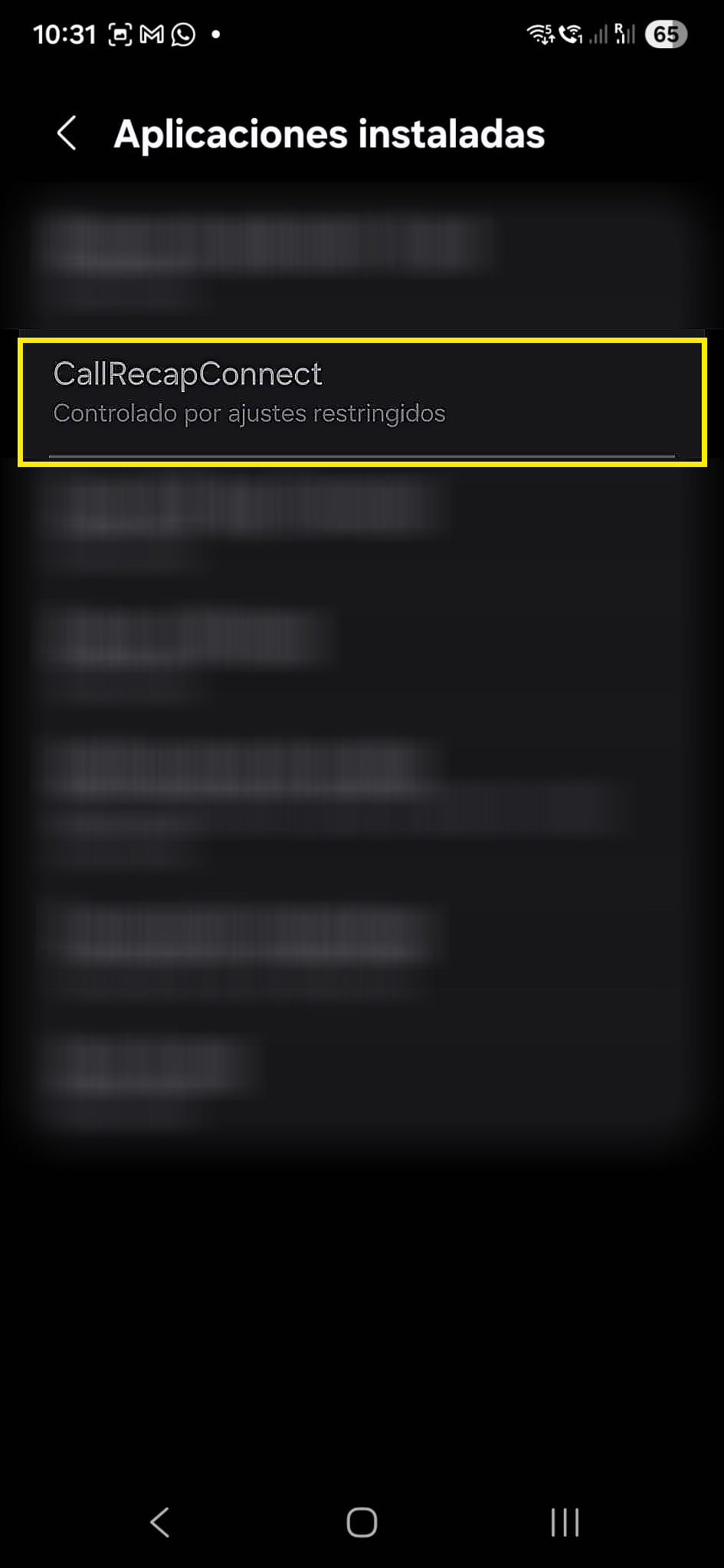
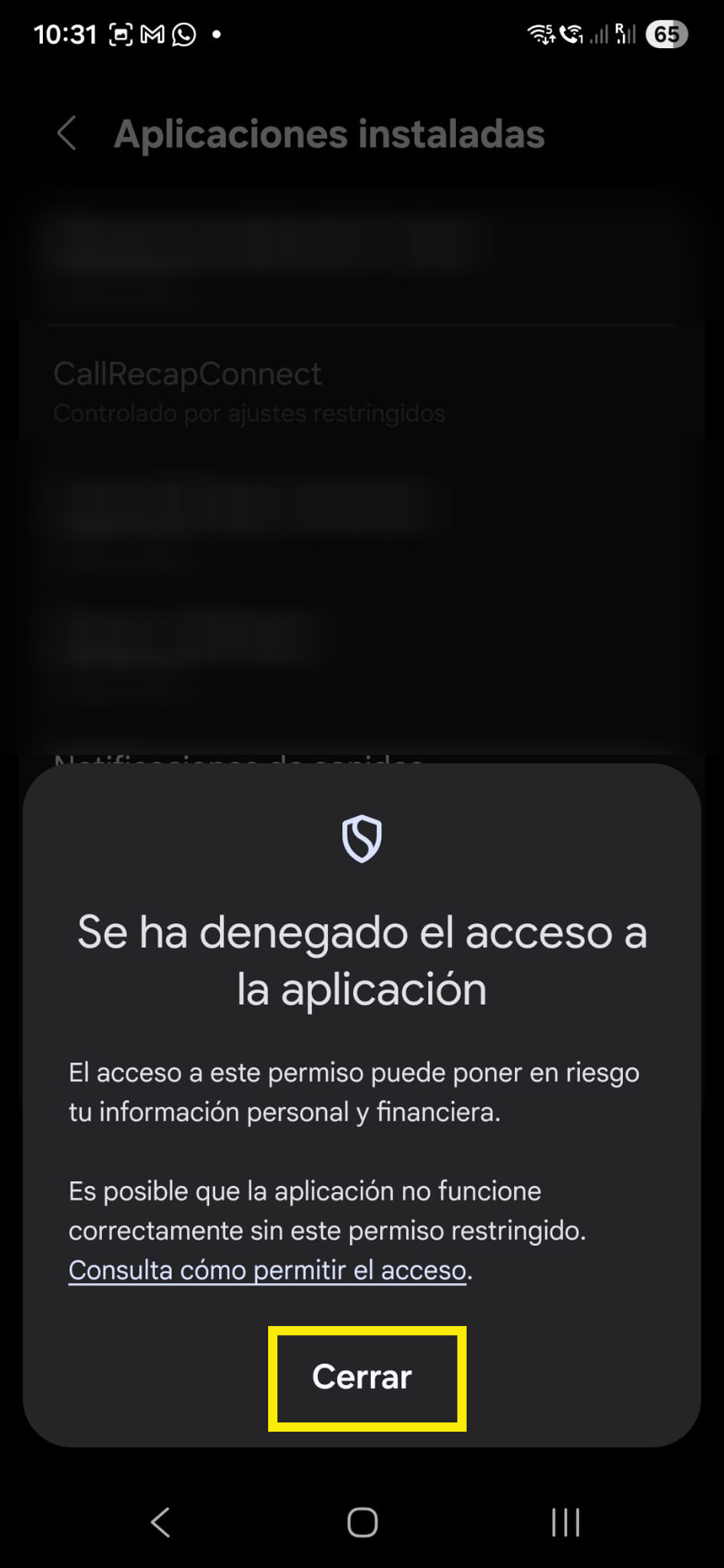
An "Access denied" dialog appears — this is expected. Tap Close. This action unlocks the Allow Restricted Settings option you'll need in the next step.
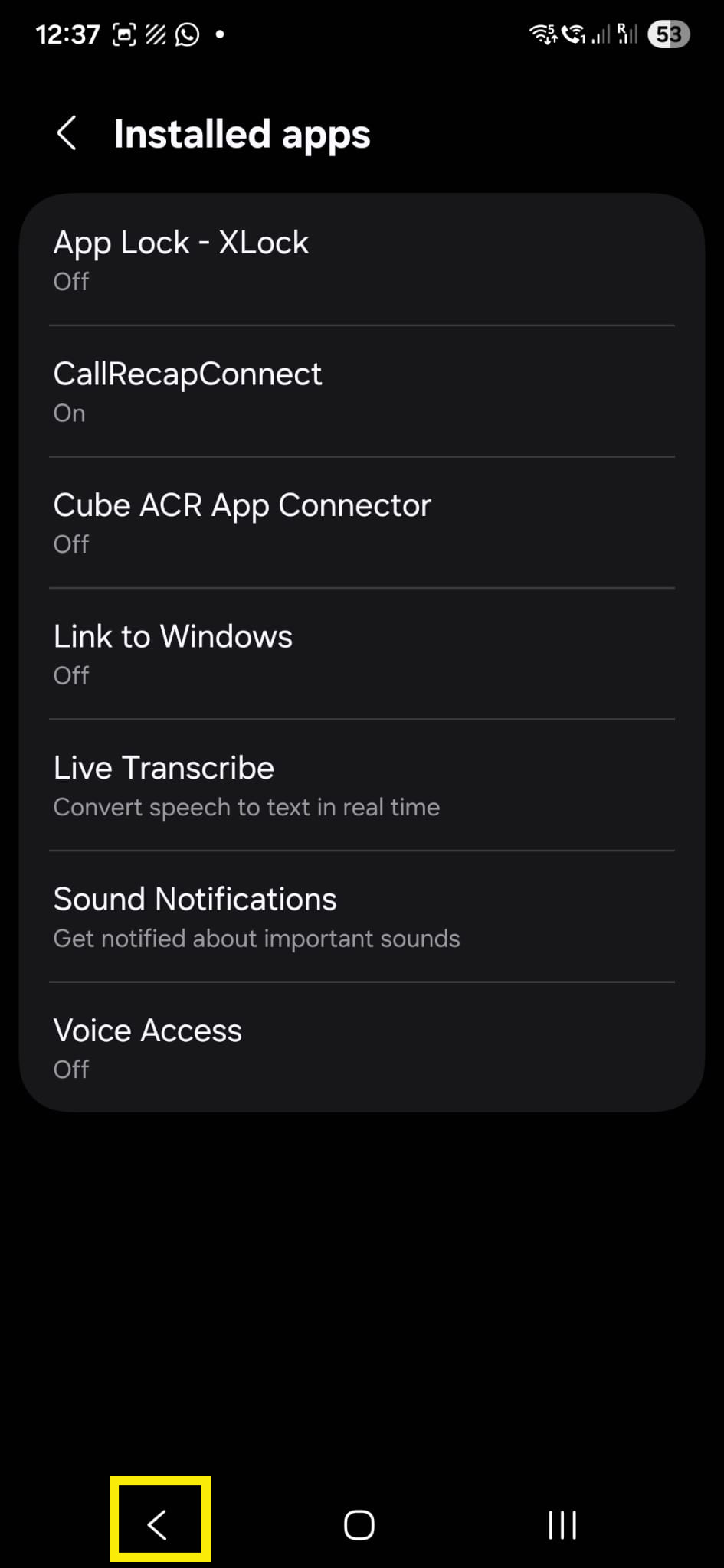
Press the Back button to return to Connect.
The next step will unlock this restriction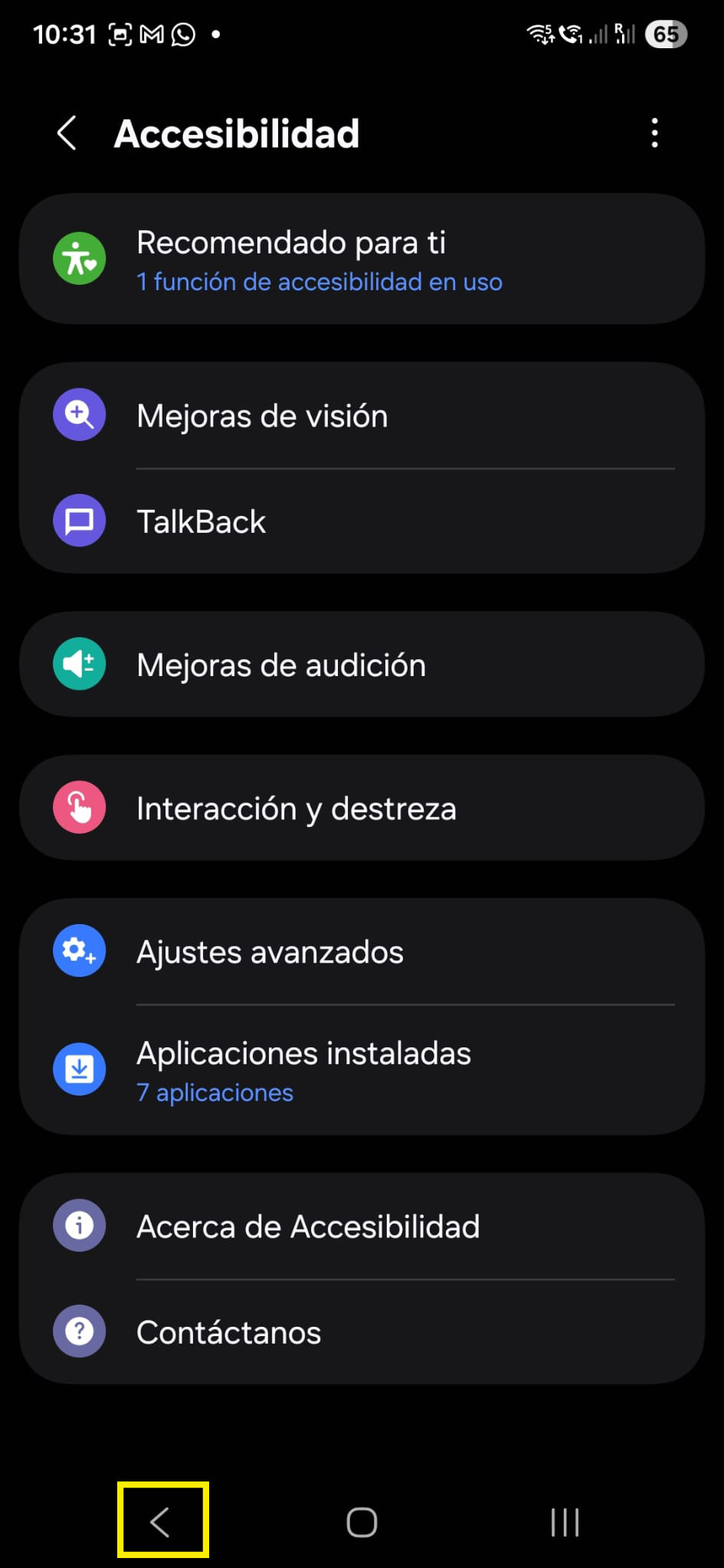
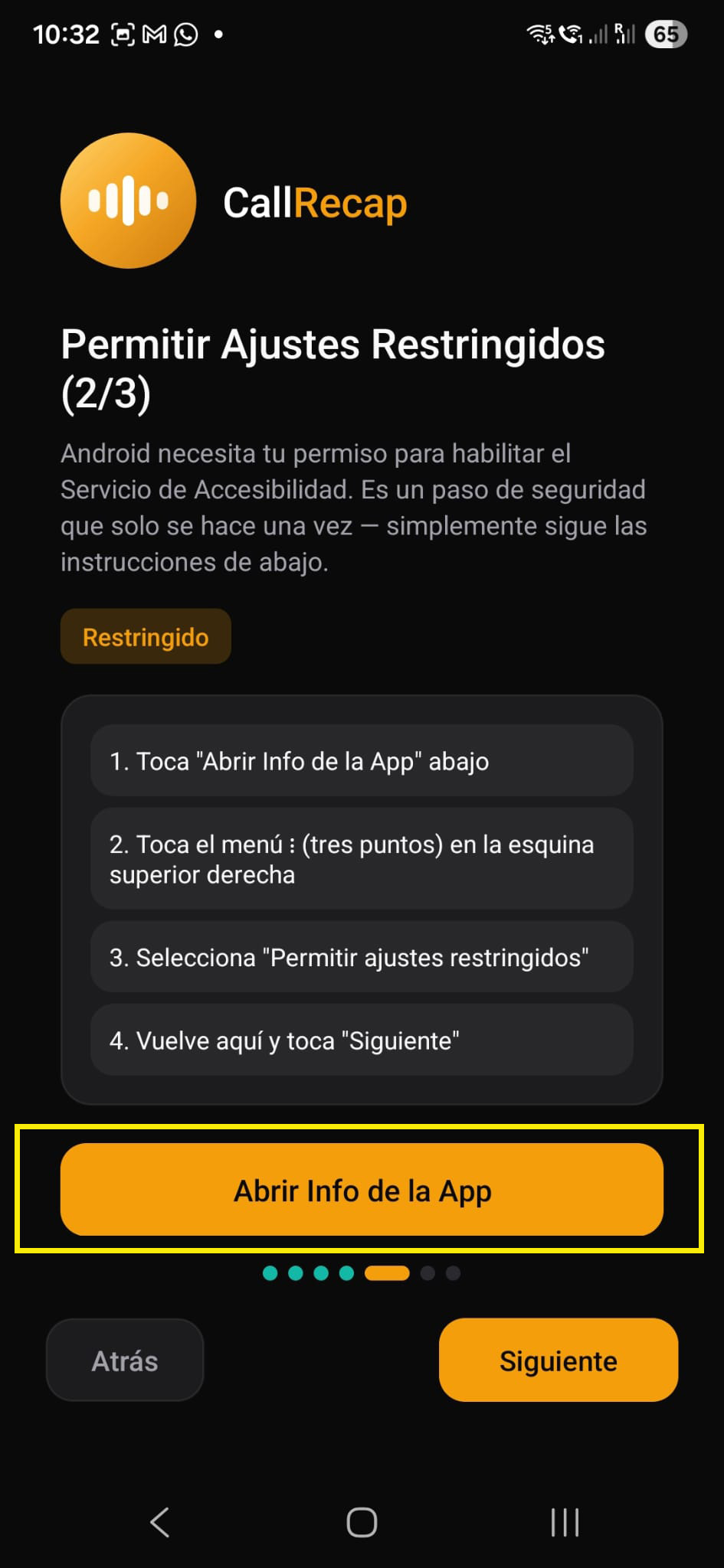
Connect shows the Restricted Settings step. Tap Open App Info.
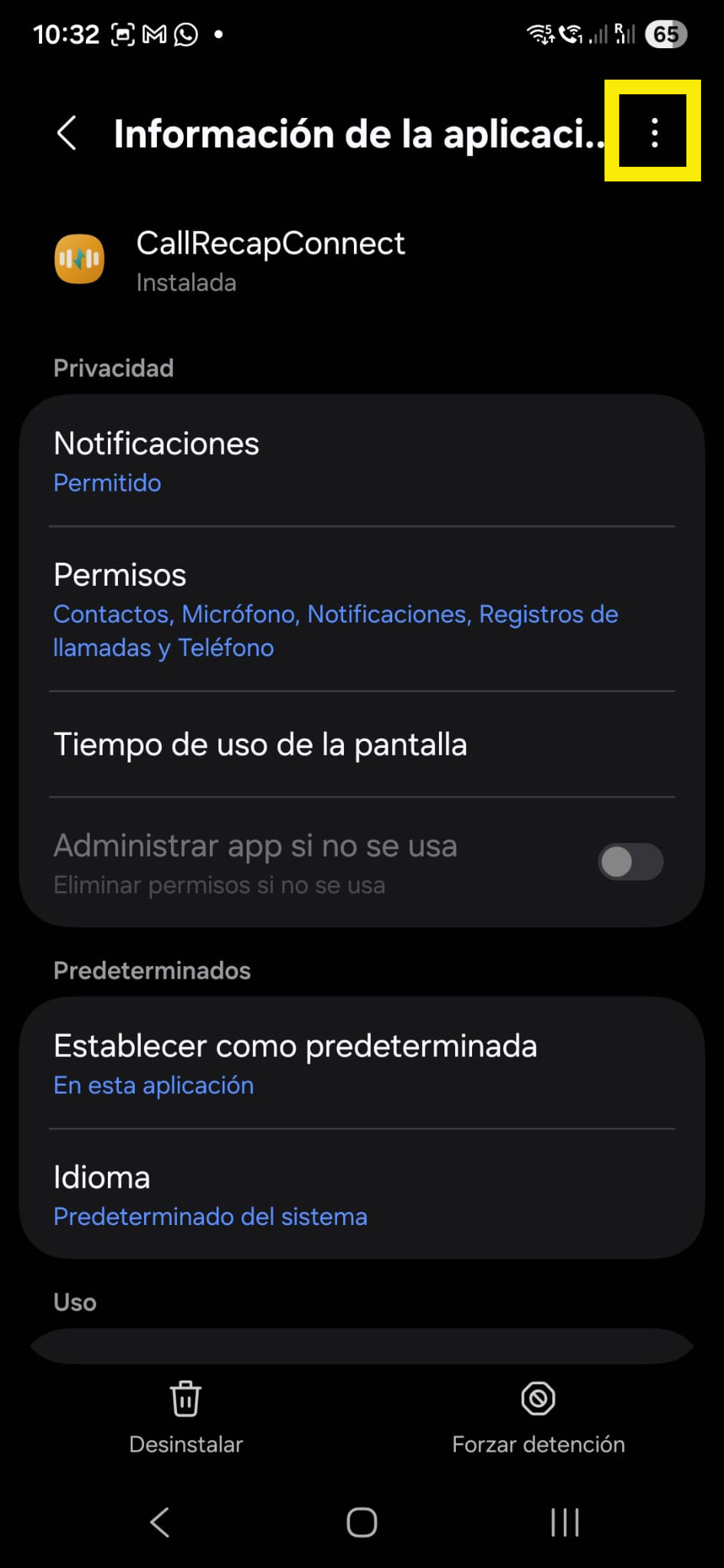
On the App Info page, tap the three-dot menu (⋮) in the top right corner.
Tap Allow restricted settings. You may need to confirm with your PIN or fingerprint.
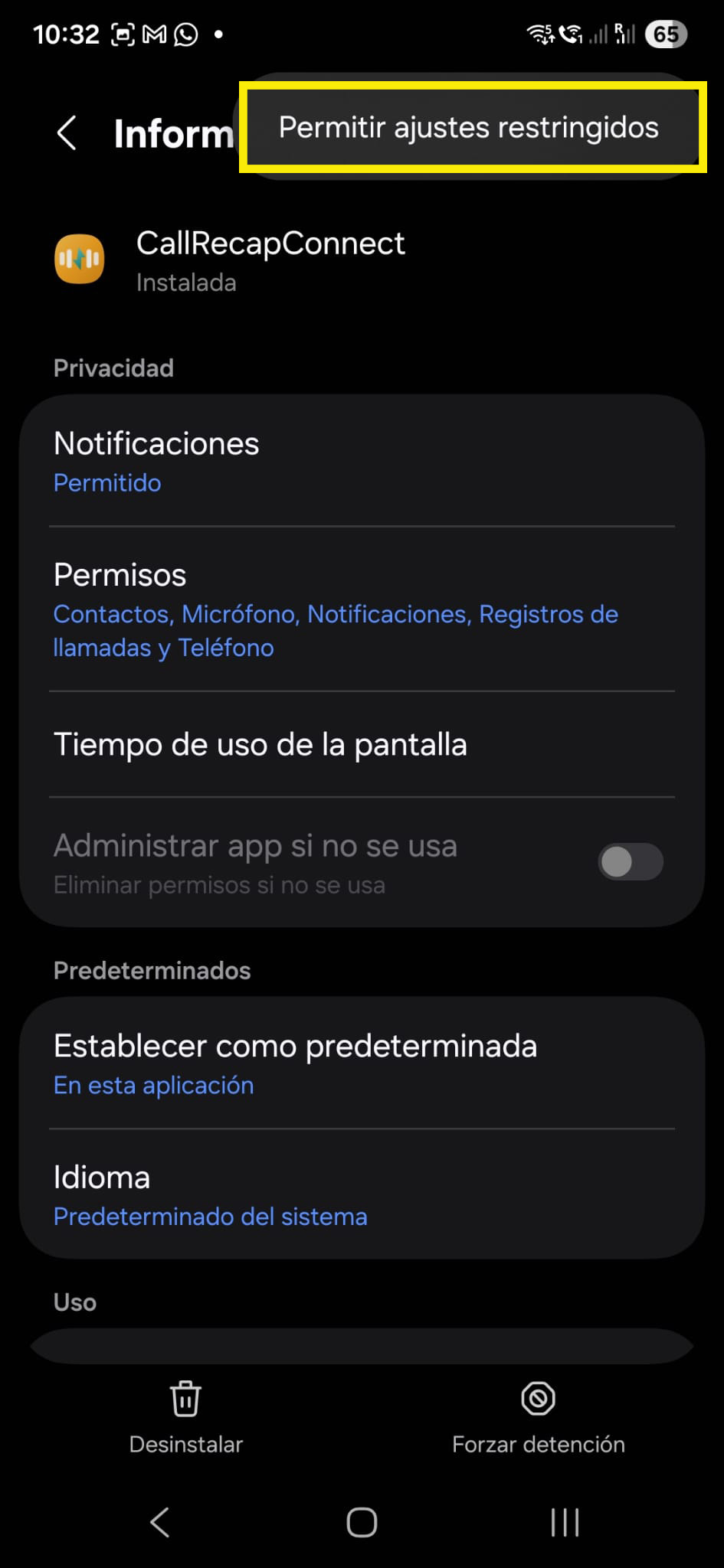
You'll see a confirmation: "Restricted settings are allowed". Press Back to return to Connect.
Your phone may ask for PIN/fingerprint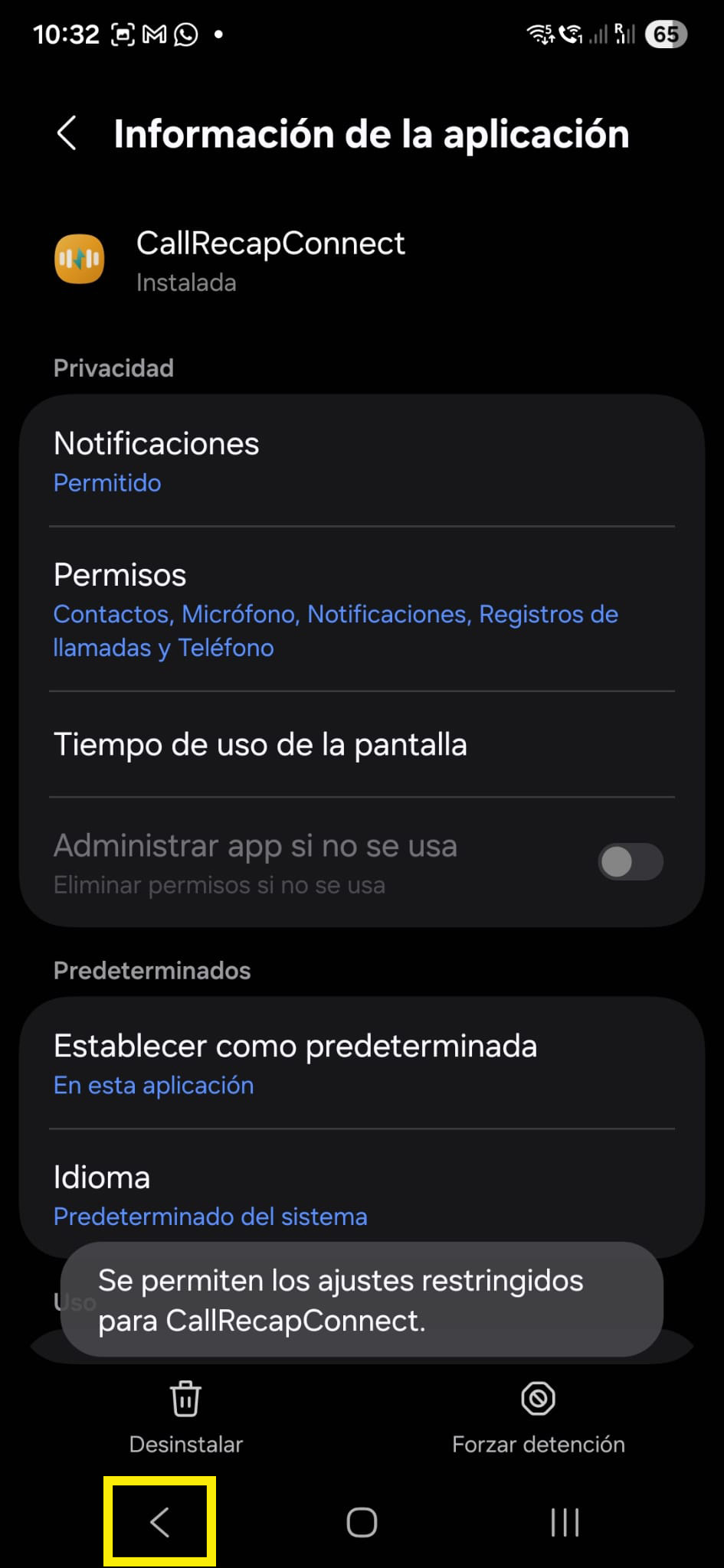
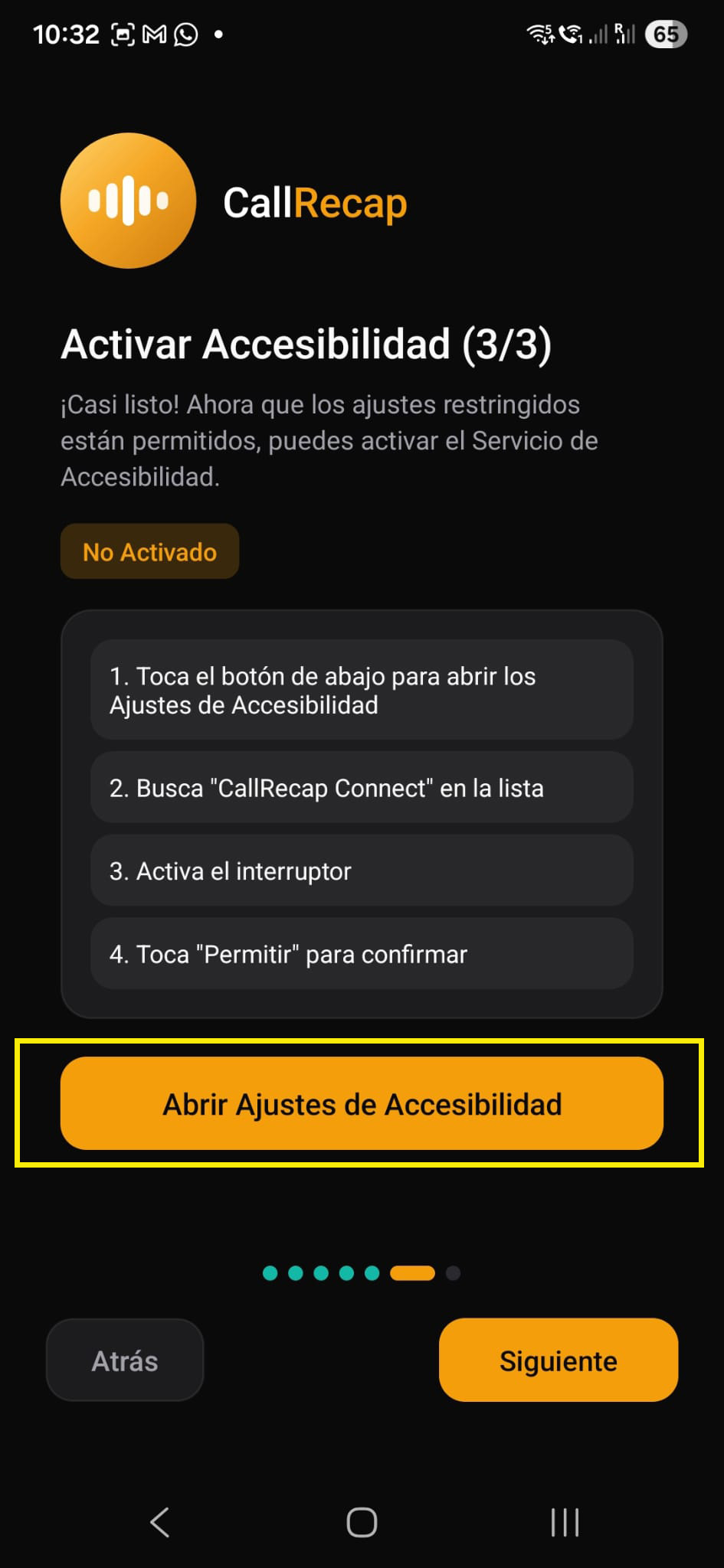
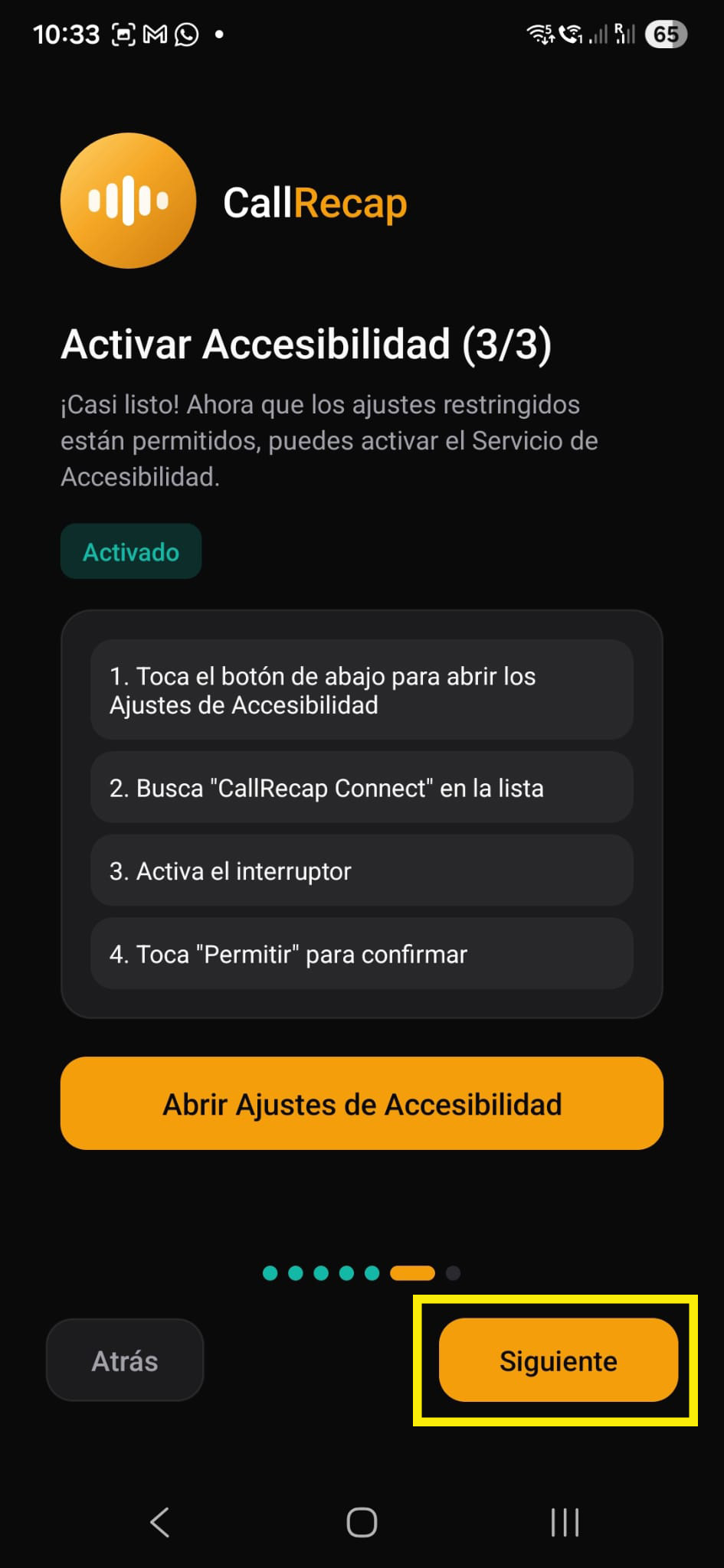
Connect now shows Activate Accessibility (3/3). Tap Open Accessibility Settings. This time it won't be blocked!
Tap Installed apps again.
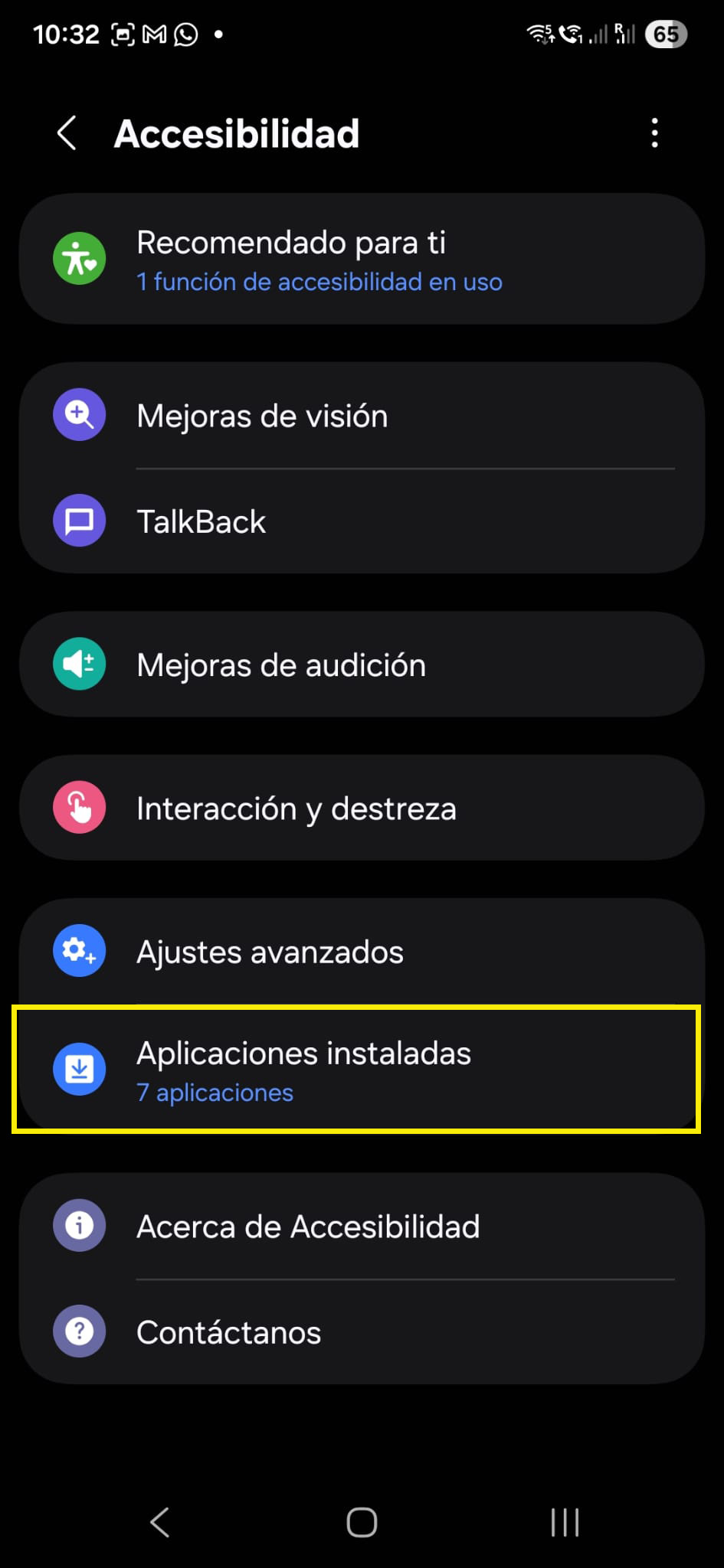
Now CallRecapConnect shows as "Disabled" instead of "Restricted". Tap on it.
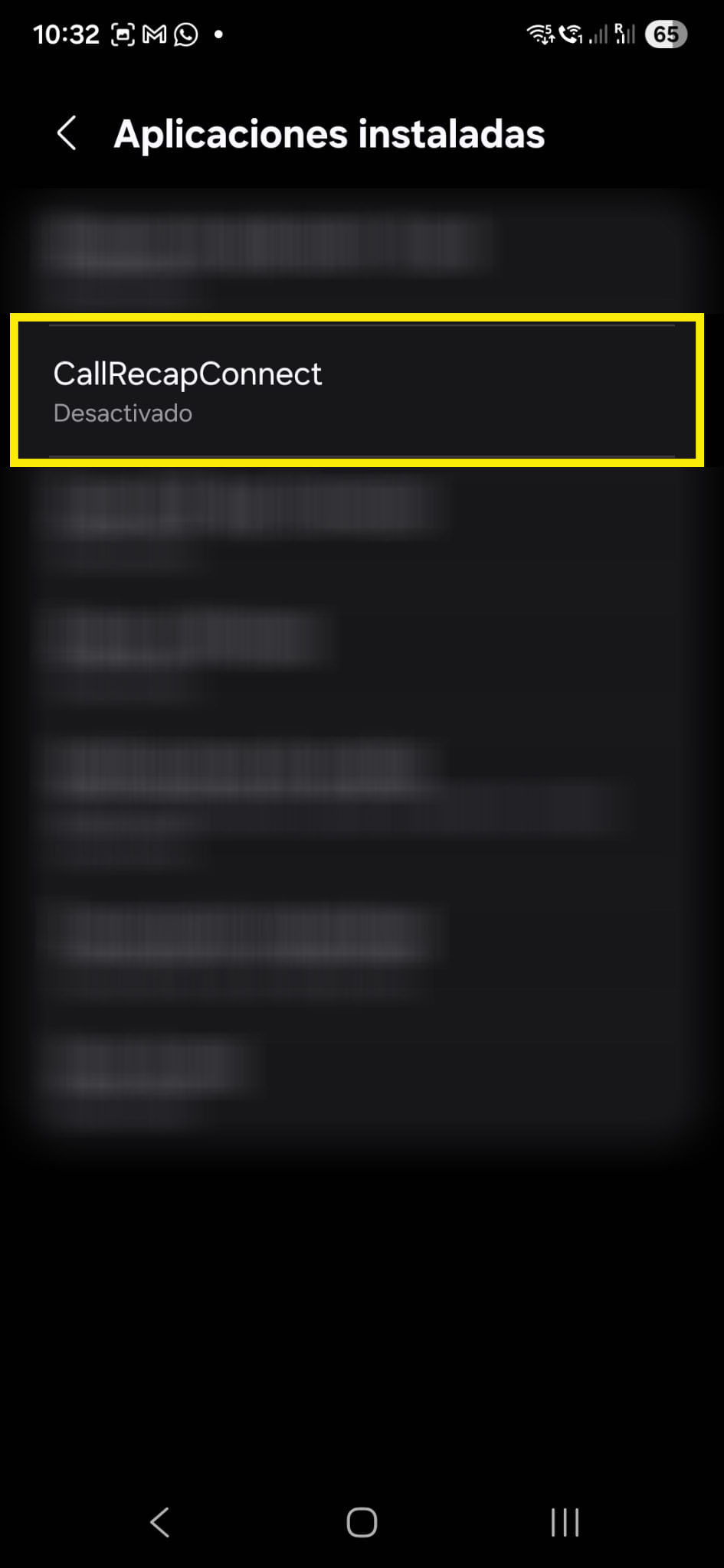
Tap the toggle to turn it ON. Confirm when prompted.
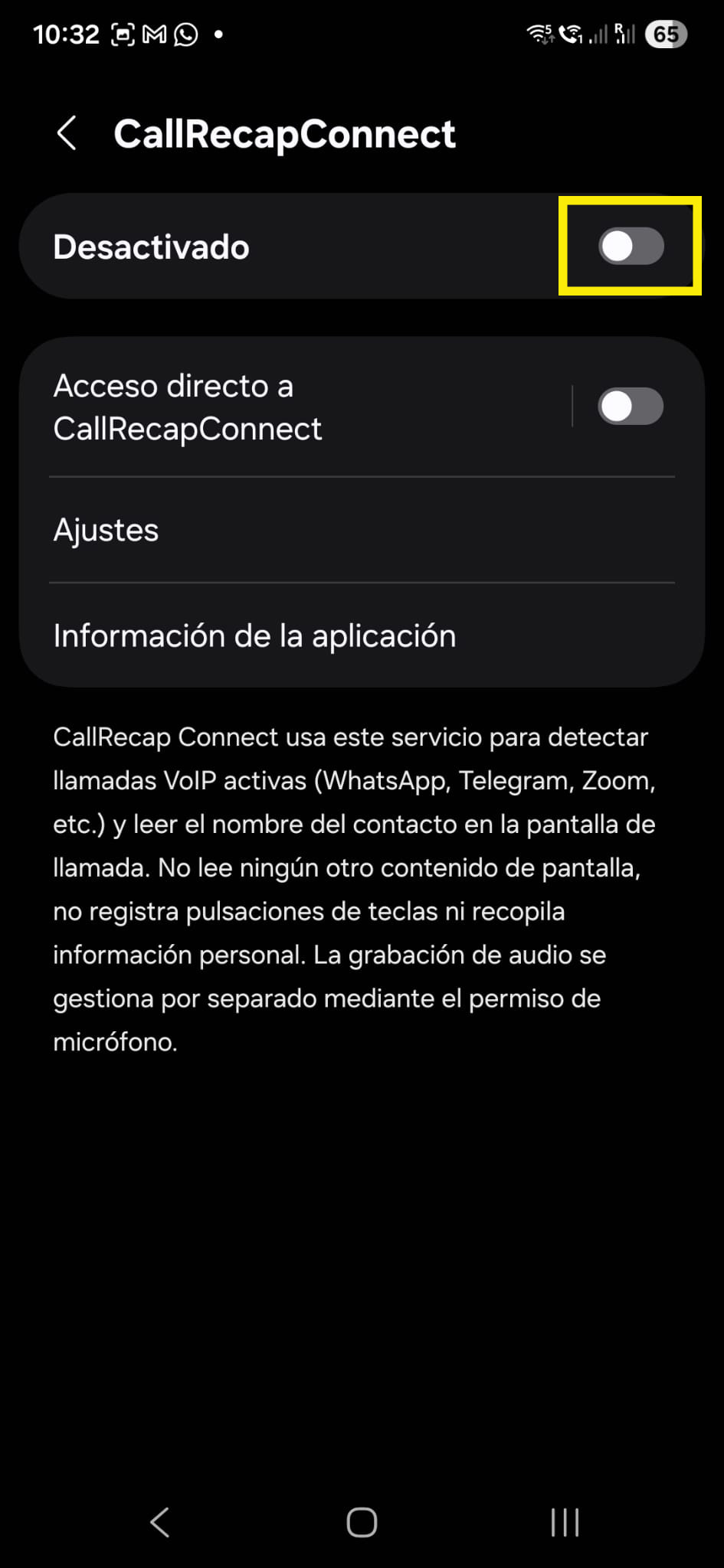
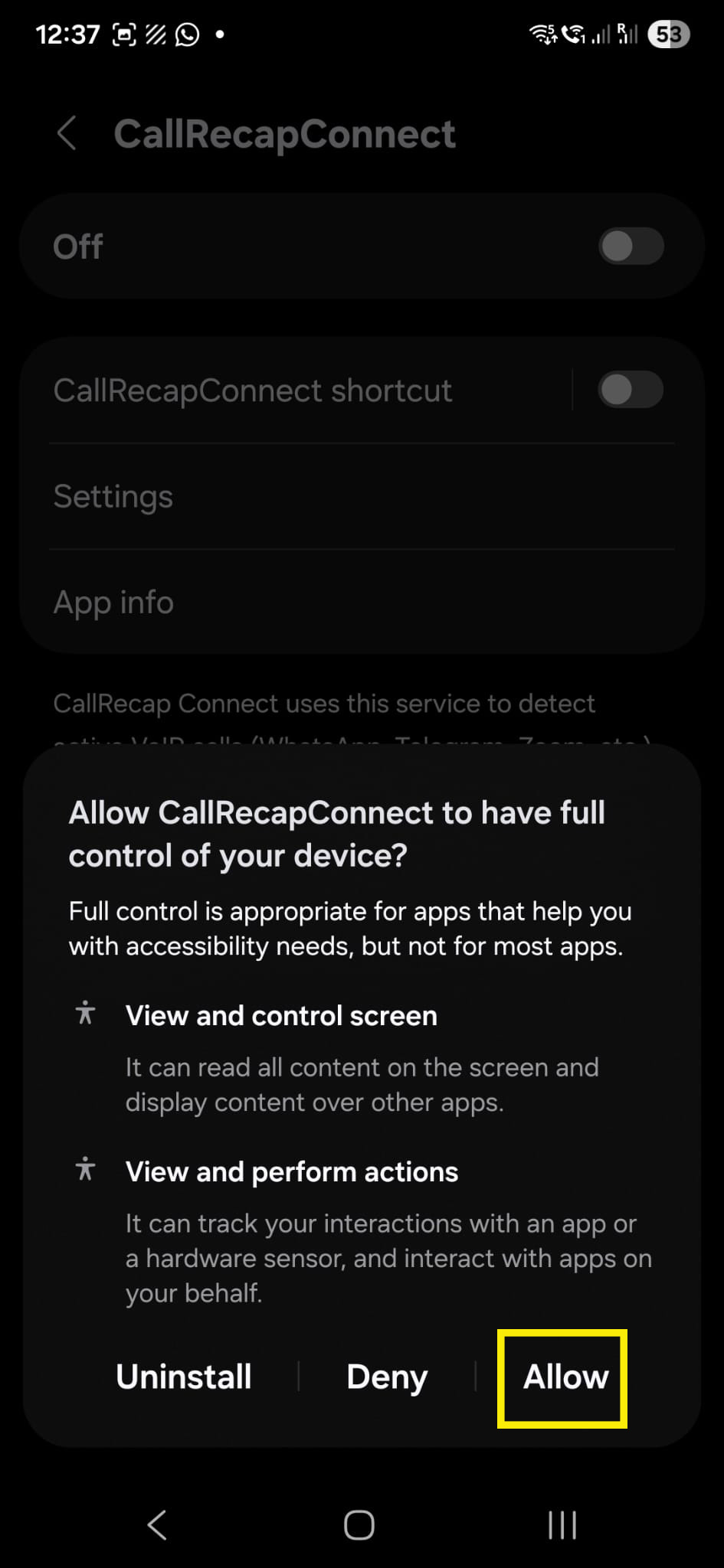
The toggle now says Enabled. Press Back to go back.
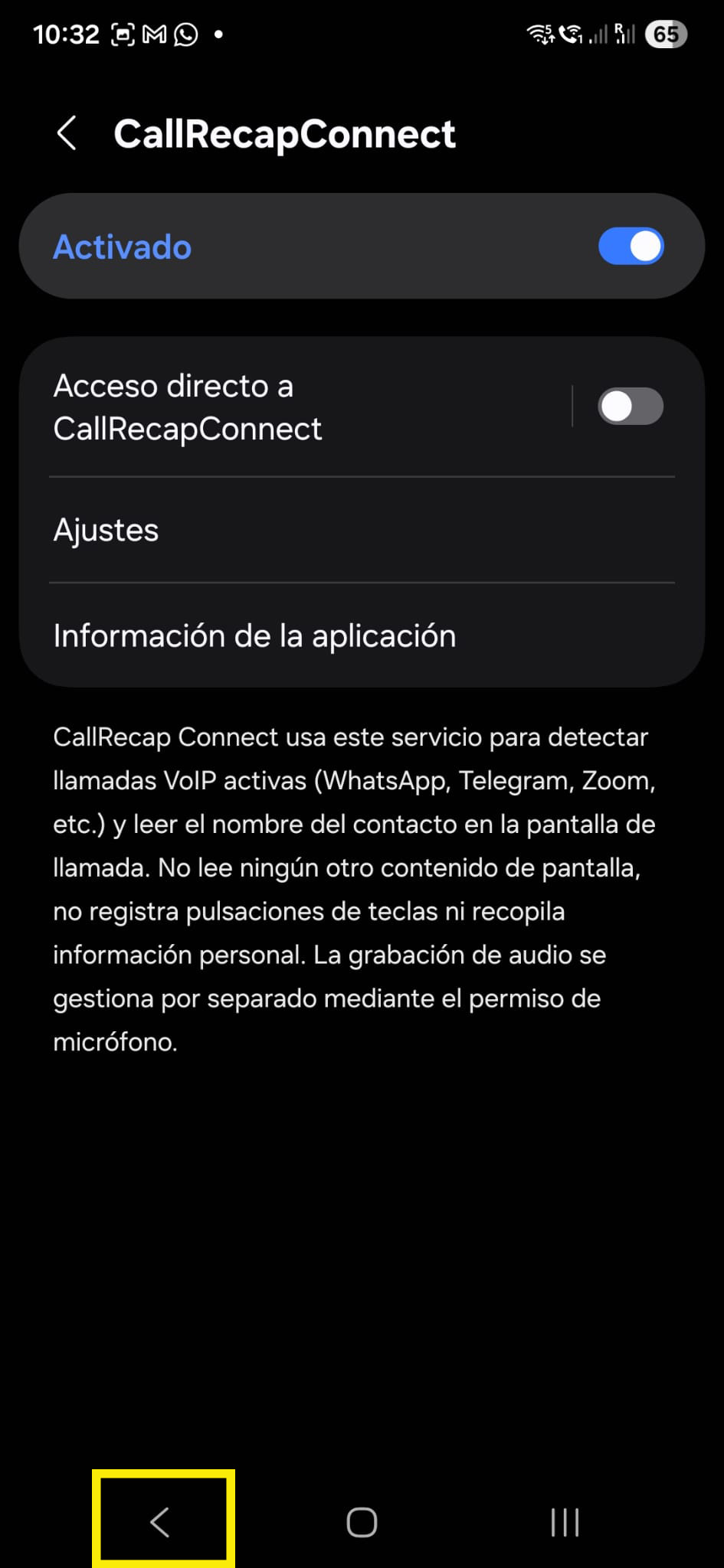
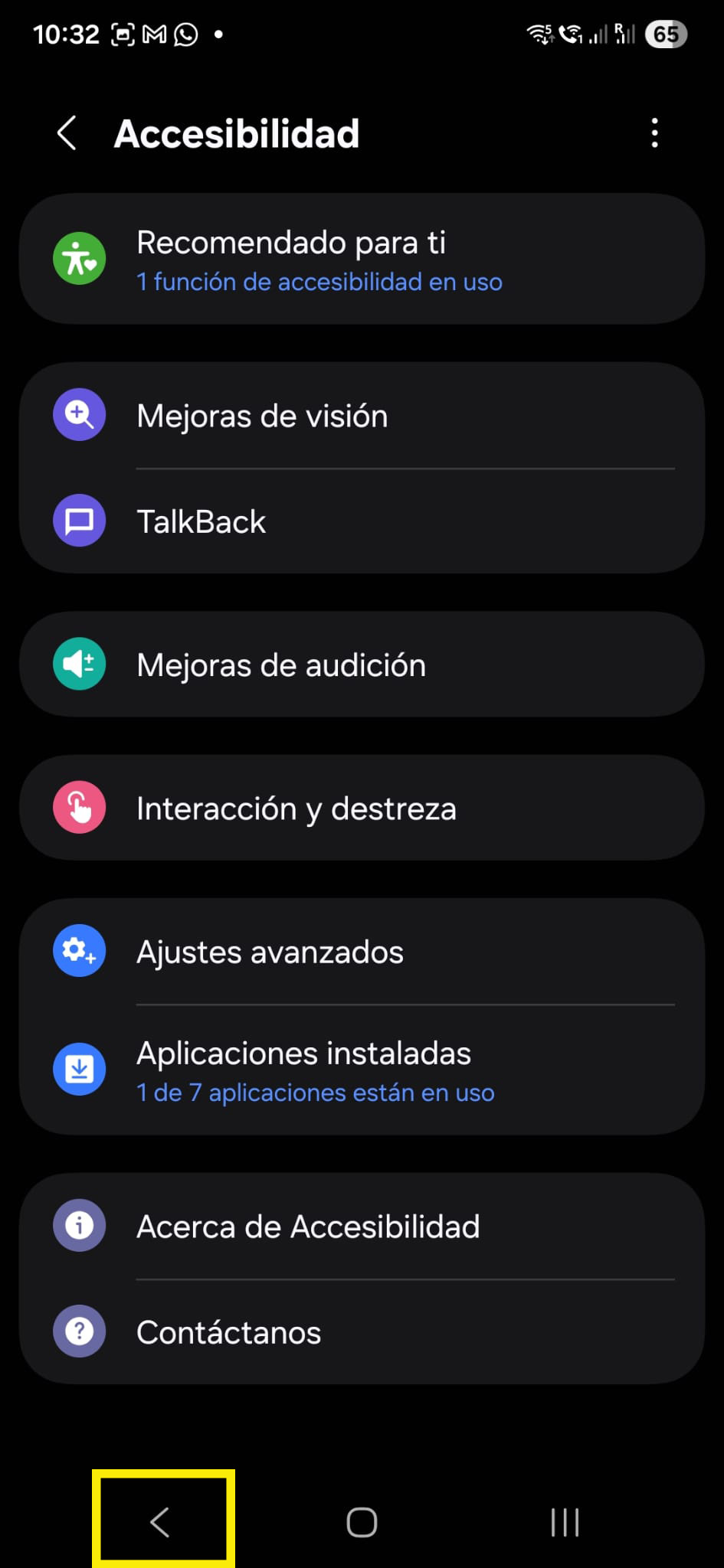
The Accessibility page now shows CallRecap Connect as active. Press Back again to return to Connect.
Back in Connect, the badge now says Enabled (green). Tap Next.
You'll see a green checkmark and a summary of all permissions granted. Tap Open CallRecap and you're ready to go!
Connect works silently in the background. You never need to open it again.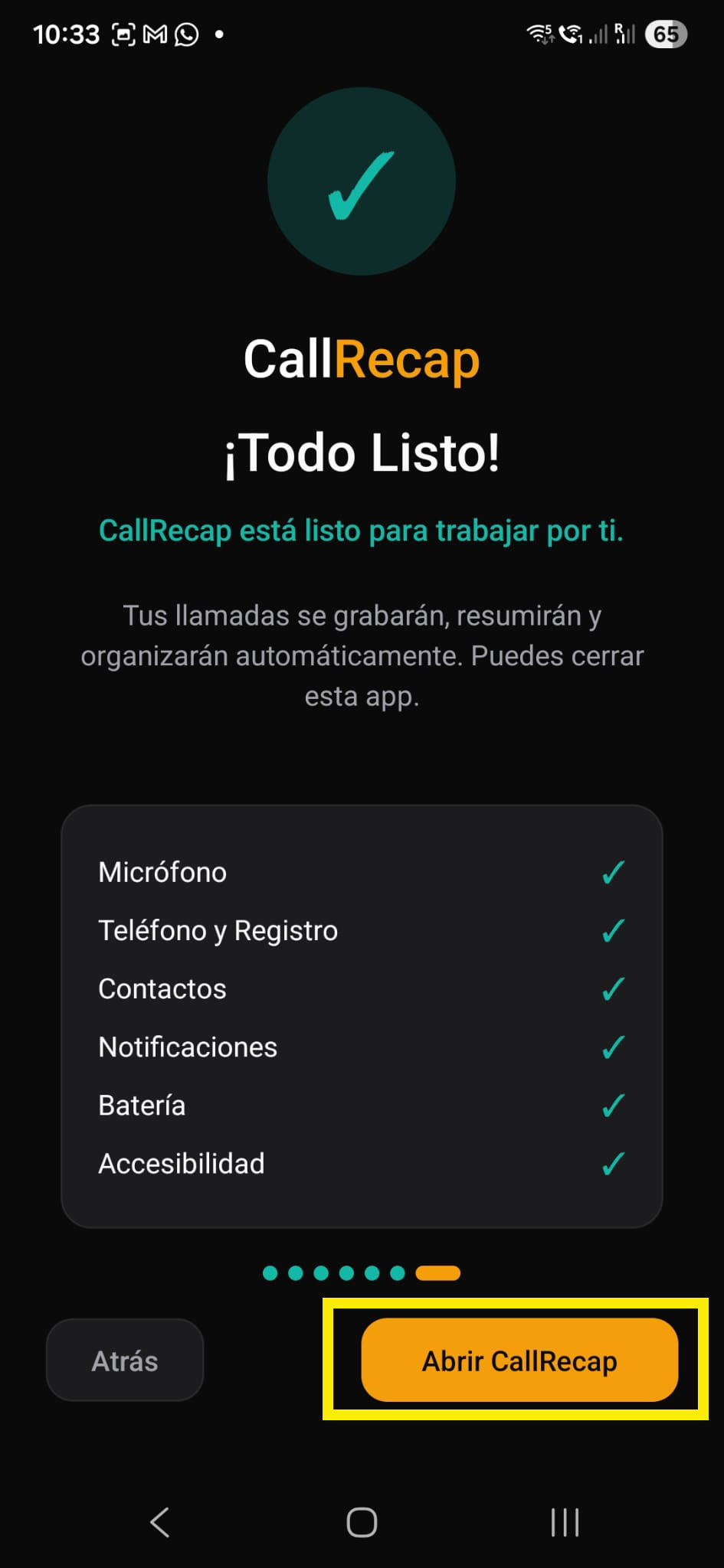
Frequently asked questions
Clear answers about CallRecap Connect.
Yes. CallRecap Connect is developed and maintained by the same team as the main CallRecap app. The official download options are listed on this page.
Google Play has specific policies around using Accessibility for call recording. To respect them, the part that captures call audio lives in a separate companion app. Setting up CallRecap Connect once is what lets CallRecap record both sides of supported calls.
No. CallRecap Connect does not request or access your stored contacts. The main CallRecap app may separately use Contacts permission to identify callers and label recordings.
Android displays a standard system message whenever Accessibility is enabled. CallRecap Connect uses this access only to recognise supported call screens and help manage recording.
Yes. You can review or change Connect permissions at any time from Android Settings.
You can continue using CallRecap for available features and saved recordings. For some regular phone and VoIP calls, automatic two-sided recording may be limited until Connect is set up.
Call recording behaviour can vary by manufacturer, Android version, region, and calling app. CallRecap Connect is designed to support as many compatible devices and calling apps as possible.
Call-recording requirements vary by country and region. Please follow the rules that apply where you live and obtain consent when needed.
Our support team can guide you through the setup. When contacting support, it helps to include your phone model, Android version, the setup step you are on, and a screenshot when relevant.
Contact CallRecap SupportReady to complete your setup?
Install the official CallRecap Connect app and complete the one-time setup for supported two-sided call recording.
Download CallRecap ConnectOfficial version · Free · No ads · Maintained by CallRecap